 DropAirOpen DropAir ↗
DropAir vs PairDrop: choosing a file-sharing tool
A PairDrop alternative for your own devices.
Looking for a PairDrop alternative? DropAir sends files and copied text between your devices on the same local network, without an account. Desktop Chrome and Edge can save incoming files directly into a folder you choose. PairDrop also supports local sharing and text, and its documented remote-transfer features may be more suitable when devices are on different networks.
This comparison is written by the maker of DropAir. It describes workflows, not a speed benchmark. Checked 12 October 2026.
Published by DropAir · Instructions reviewed 12 October 2026 · Help & contact
Choose by what you need to do
Move files between a phone and computer
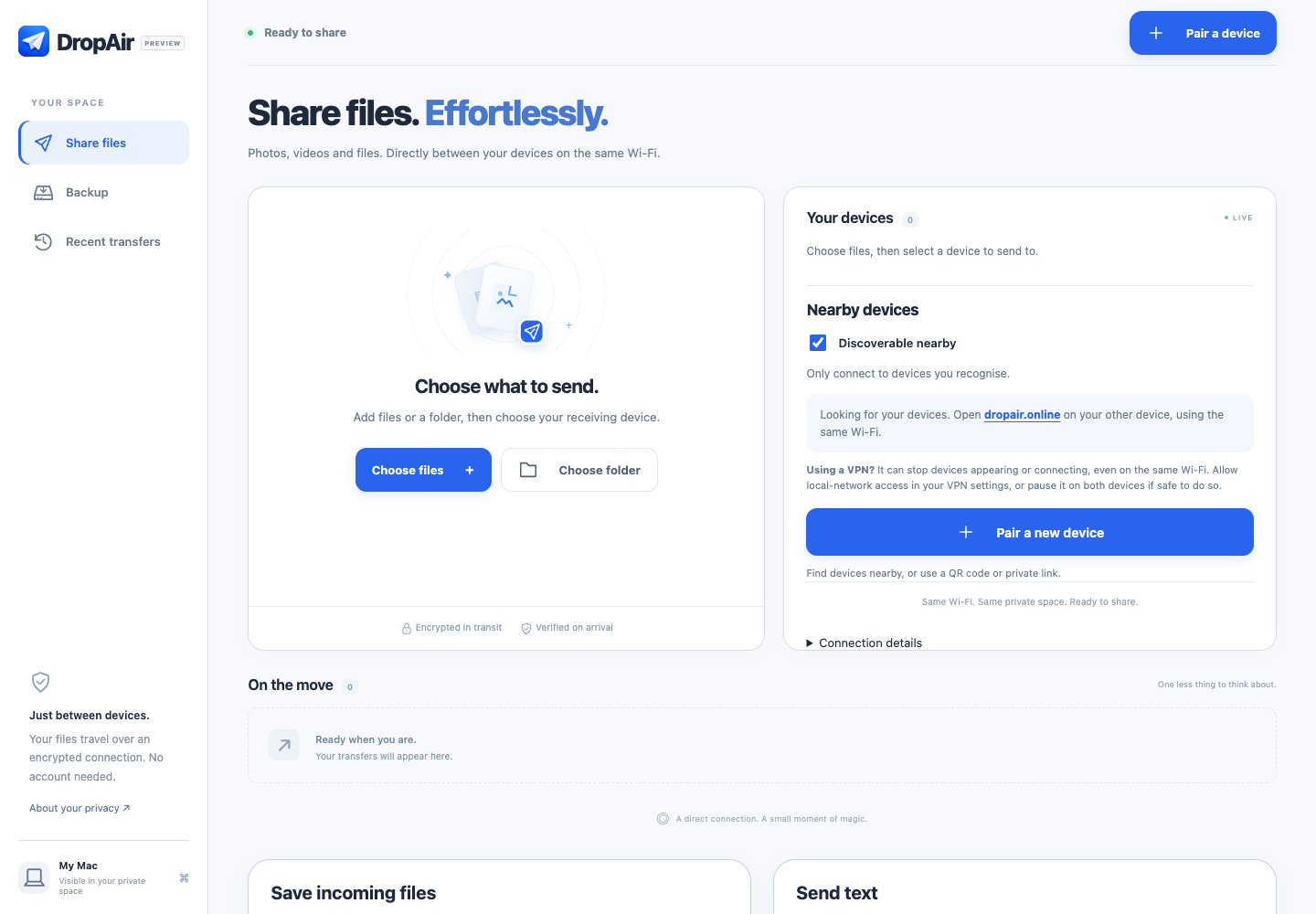
Both tools offer browser-based sharing. In DropAir, open the website on both devices, connect to the recognised device, confirm pairing and select your files. No desktop app is required. Start with the iPhone-to-Windows walkthrough.
Keep incoming files in a project folder
DropAir’s receiving-folder option in desktop Chrome and Edge lets you choose a destination before sending. Files save there individually. Reconnect folder access when prompted after reopening the browser. In other browsers, use Download or Save/share.
Send a note, address or link
Both tools support sending text. DropAir uses an explicit Send text action and a Copy text button on the receiver. It is manual transfer, not background clipboard synchronisation.
Send across different networks
PairDrop’s documentation describes internet transfers through paired devices or temporary public rooms and a TURN fallback. DropAir currently requires a reachable local connection and has no remote file-relay fallback. If remote sharing is your main requirement, consider PairDrop’s documented options.
Back up an iPhone library
DropAir’s iPhone and iPad app includes resumable photo/video backup to a computer. Library backup starts in the app; the website receives the files. See backup setup and requirements.
Try a local transfer in three steps
- Open dropair.online on both devices on the same Wi-Fi.
- Choose Connect beside your device and confirm the pairing code. Use Pair a device if needed.
- Choose files, select the receiving device and check the saved copy.
If discovery fails, check VPNs and guest-network isolation before switching tools. See connection troubleshooting.
Sources and scope
PairDrop features above are based on its official project documentation. Deployment settings and browser support can vary. We have not claimed that DropAir is faster or more secure, and have not tested every PairDrop deployment. DropAir is independent of PairDrop, Snapdrop and Apple AirDrop.