 DropAirOpen DropAir ↗
Save received files to a folder in Chrome or Edge
Your files. Straight to the right folder.
On desktop Google Chrome or Microsoft Edge, DropAir can save incoming files directly into a folder you choose. Set the destination on the receiving computer first, then send files from your paired phone or other device. Safari, Firefox and mobile browsers use Download or Save/share instead.
Published by DropAir · Instructions reviewed 12 October 2026 · Help & contact
Choose where files arrive
Open DropAir on the receiving computer
Use desktop Chrome or Edge on Windows, Mac or Linux. Open dropair.online and pair your sending device on the same local network.
Choose a receiving folder
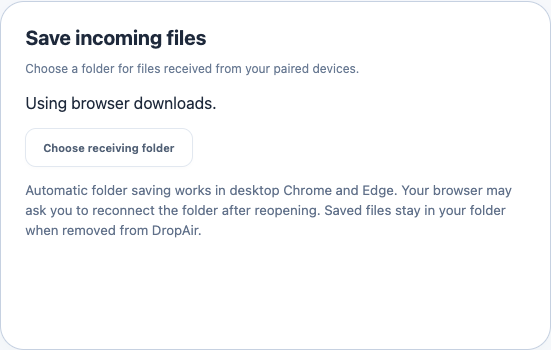
Scroll below the transfer list to Save incoming files and select Choose receiving folder. Select or create a folder in the system folder picker, then grant the browser permission to write there. Choose a folder you recognise and have permission to use.
Check the destination before sending
Look for Saving automatically to and the folder name. On the sending device, choose your files and select the computer.
Check the saved copies
Open the folder in File Explorer or Finder. Keep both DropAir pages open until sending finishes, then open a received file to verify it.
What happens to folders and existing files?
Individual files save into your selected destination. A folder sent with Choose folder arrives as a ZIP archive; open or extract it with your computer’s file manager. Receiving-folder selection does not recreate a live sync between devices.
Removing an item from DropAir does not delete the copy already saved in your chosen folder. Check saved copies before deleting the originals.
Returning to DropAir later
If the website asks you to Reconnect folder, grant access again before sending more files. Browsers control whether folder access can be remembered. If you switch back using Use browser downloads, future transfers use ordinary browser saving instead.
Is this the same as an iPhone backup destination?
No. This setting handles ordinary received files. The separate Backup workflow has its own destination and resume record. When resuming a backup, follow the instructions to select the original destination folder rather than its DropAir subfolder.
When the folder picker does not open
Confirm you are in desktop Chrome or Edge and click the button yourself; browsers require a user action. Managed-browser policies or denied permissions may block access. If folder saving is unavailable, use Download or Save/share on received files. Do not assume a file is saved until the transfer completes and you can find it in the destination.
Need the sending steps? See iPhone to Windows or Mac to Windows.