 DropAirOpen DropAir ↗
An AirDrop alternative for Windows, Android and Linux
Your phone. Your computer. One browser-based connection.
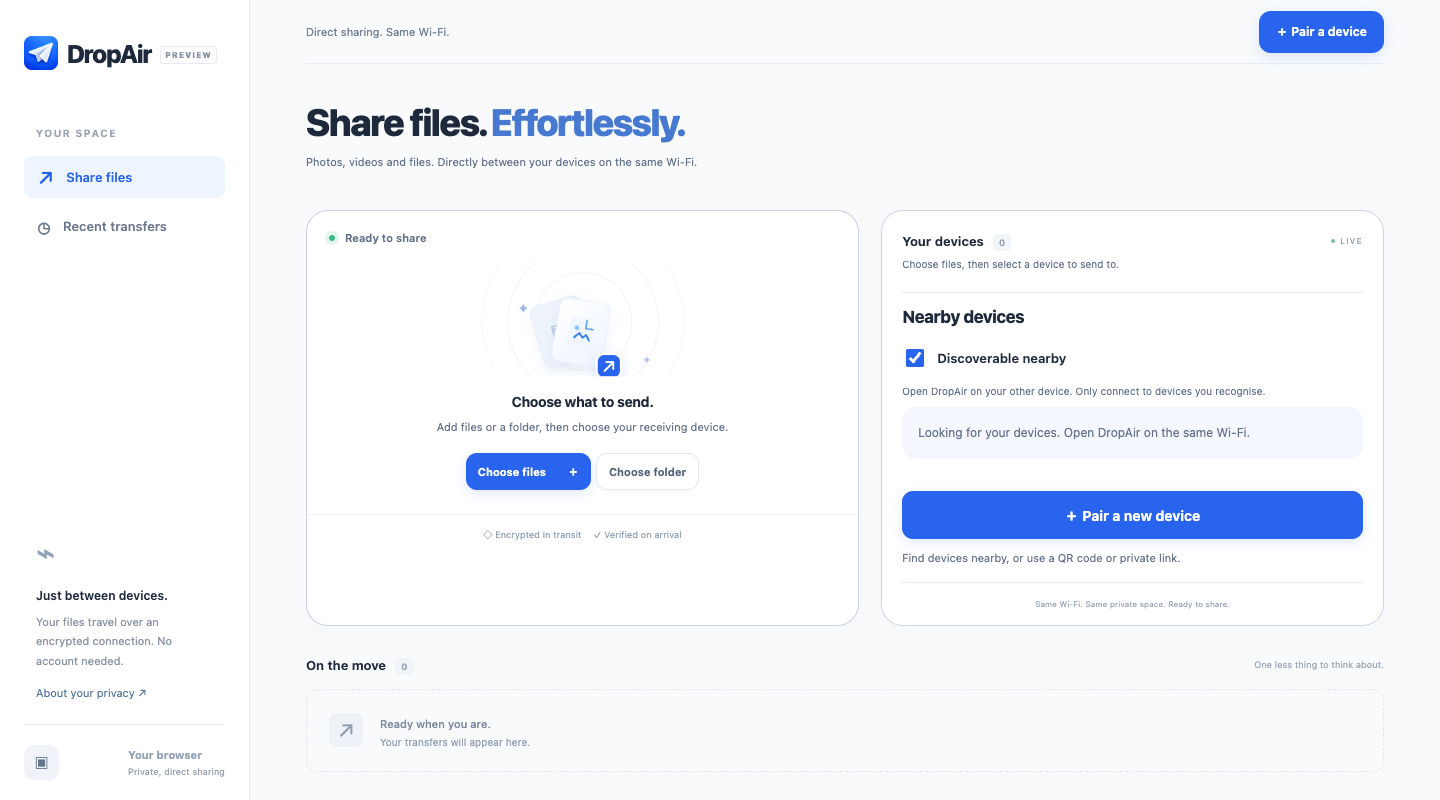
DropAir lets you send selected photos, videos, documents and folders between devices using compatible browsers on the same local network. Open dropair.online on both devices, connect them, choose your files and select the receiver. The web app is free and ad-supported, with no account or desktop installation required.
DropAir is an independent alternative workflow. It does not use Apple’s AirDrop protocol or make your PC appear in Apple’s AirDrop menu.
Choose your device combination
iPhone or iPad to Windows
Open DropAir in your phone or tablet browser and on the PC. Choose photos, videos or a document on the mobile device, then send to Windows. Follow the iPhone-to-Windows walkthrough for pairing and downloading.
Mac to Windows
Open the website on each computer, connect them and choose files or a folder. Folder selections are packaged as ZIP files. Our Mac-to-Windows guide covers both directions.
Android and Linux
Use an up-to-date browser on each device and the same local network. Select a file using Android’s picker or your Linux desktop file chooser, then select the connected receiver. Browser permissions and available storage can affect transfers; try one small file first.
How to send files without installing a desktop app
Open dropair.online on both devices
Connect both to the same trusted Wi-Fi. A computer using Ethernet on that same network can also connect. Keep both pages open.
Connect your other device
Look under Nearby devices, choose the device you recognise and confirm pairing as prompted. If it does not appear, use Pair a device and scan the private QR code or open the complete pairing link on the other device. Keep that link private.
Choose files, then select the receiver
Use Choose files for photos, videos or documents. On a supported desktop browser, Choose folder packages a folder for sending. Your selection is only prepared until you select a connected device to send it to.
Save the received files
The connected receiver receives automatically. Desktop browsers may start a download automatically; if blocked, choose Download. On a phone, use Save or share where supported, then choose a destination in the system menu. Saving to Photos depends on the file type and options offered by the device.
What you need to know before transferring
- Same local network: DropAir is for nearby transfers, not sending a download link to someone elsewhere.
- Internet access: needed to load the site and establish the connection. File contents travel directly between devices, without a cloud file relay.
- VPNs and guest Wi-Fi: can block discovery or the connection. Allow local-network access in your VPN, or pause it if safe to do so. A QR code cannot bypass network isolation.
- Both pages open: keep mobile devices unlocked and the browser active until the transfer completes.
- Storage and size: available browser storage and device resources limit transfers. There is no guaranteed unlimited file size.
If a device is missing or a transfer stops, use the connection troubleshooting checklist.
Common questions
Is DropAir the same as AirDrop?
No. Apple describes AirDrop as a sharing feature for nearby Apple devices. DropAir uses its own browser connection and is not affiliated with Apple. See Apple’s AirDrop instructions for the native feature.
Do both devices need the DropAir app?
No. This guide uses the public website on both devices. You do not need an App Store download or an account to use the web transfer.
Can I send files in either direction?
Yes. Choose files on whichever connected device holds them, then select the other device as the receiver. The save controls depend on the receiving browser.
Does this back up my whole photo library?
No. DropAir transfers the files you select. It does not provide a full photo-library backup, automatic synchronisation or album recreation. Keep your originals until you have checked the saved copies.
Can I use it away from Wi-Fi?
Both devices need to be reachable on the same local network. This guide does not promise transfers over separate networks or mobile data. For sending to a distant recipient, use a service designed for remote sharing.